# Track User Behaviour On Your Website With Google Analytics & Next.JS
# Introduction
In this blog post, we'll go through how to set up Next.JS with Google Analytics using the latest versions (Next.JS 11 and Google Analytics 4).
As part of [Next.JS 11](https://nextjs.org/blog/next-11), the new `Script` Component was added, to **automatically prioritize loading of third-party scripts to improve performance**.
Google Analytics is a great, **free** way to track the performance of your web and mobile applications. If you'd like to learn more about the new features in Next.JS 11, check out my previous blog post [here](https://blog.jarrodwatts.com/whats-new-in-nextjs-11):
%[https://blog.jarrodwatts.com/whats-new-in-nextjs-11]
### For Video Lovers 😍
%[https://www.youtube.com/watch?v=QAdtc7VWuNE]
## TLDR:
If you've already got your site and your Google Analytics account set-up, simply add the below code snippet in your `_app.js` file, and replace the `G-XXXXXXXXXX` with your Google Analytics measurement ID.
If you haven't got everything prepared yet, let's continue on to the first step of setting up Google Analytics with Next JS, below this snippet.
`_app.js`:
```
import Script from "next/script";
// ...
// This code belongs ABOVE the tag in your _app.js file's return.
{/* Global Site Tag (gtag.js) - Google Analytics */}
```
### Step 1: Creating a Google Analytics Property
The absolute first thing we'll need to do for those starting from scratch is to create a Google Analytics Property.
To do that, you'll first need to go to [Google Analytics](https://analytics.google.com/) and sign in with your Google Account.
Before creating a Property, you'll need to create an account within Google Analytics.
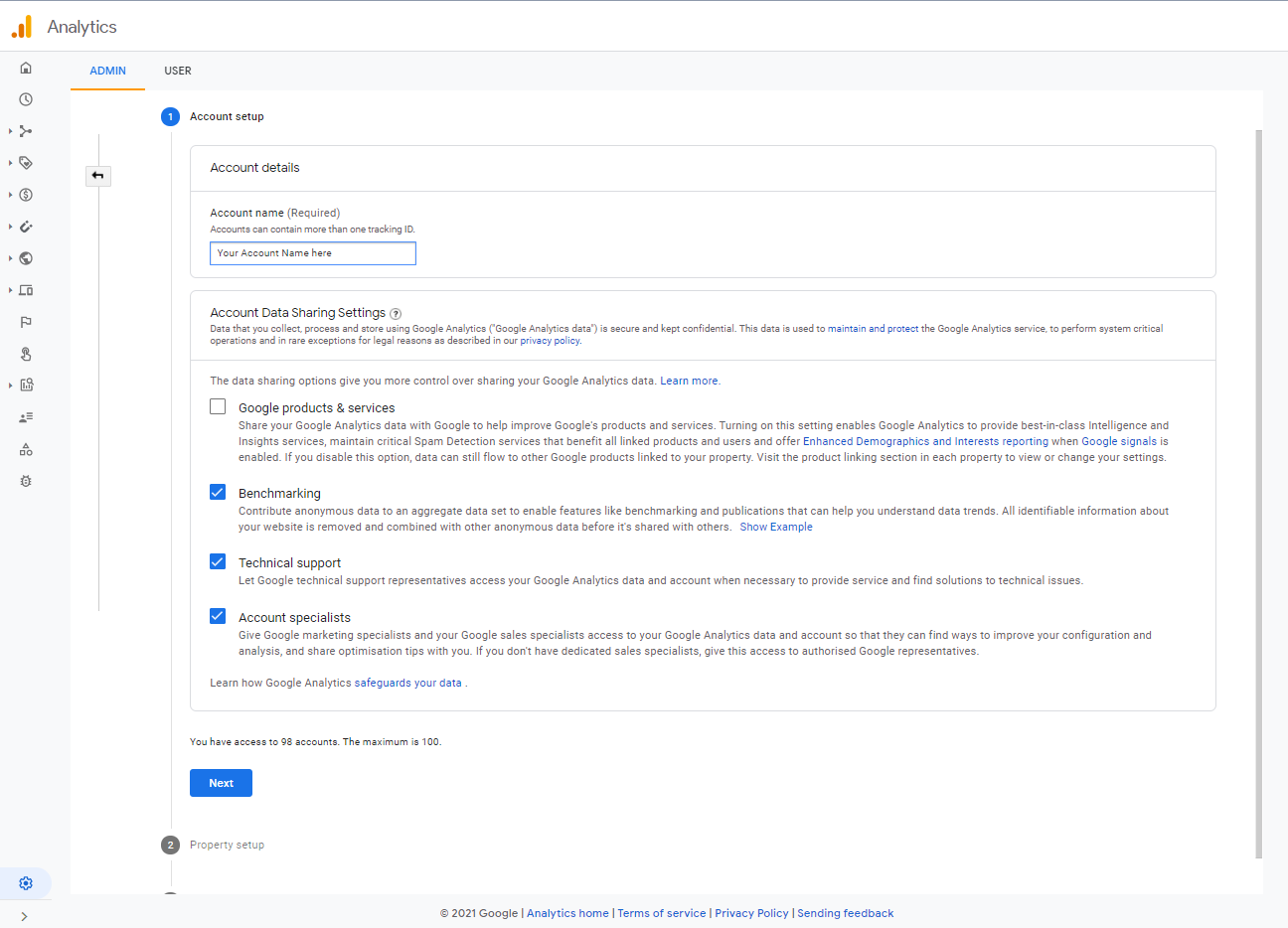
The next step will allow you to create a property within your newly created Google Analytics account:
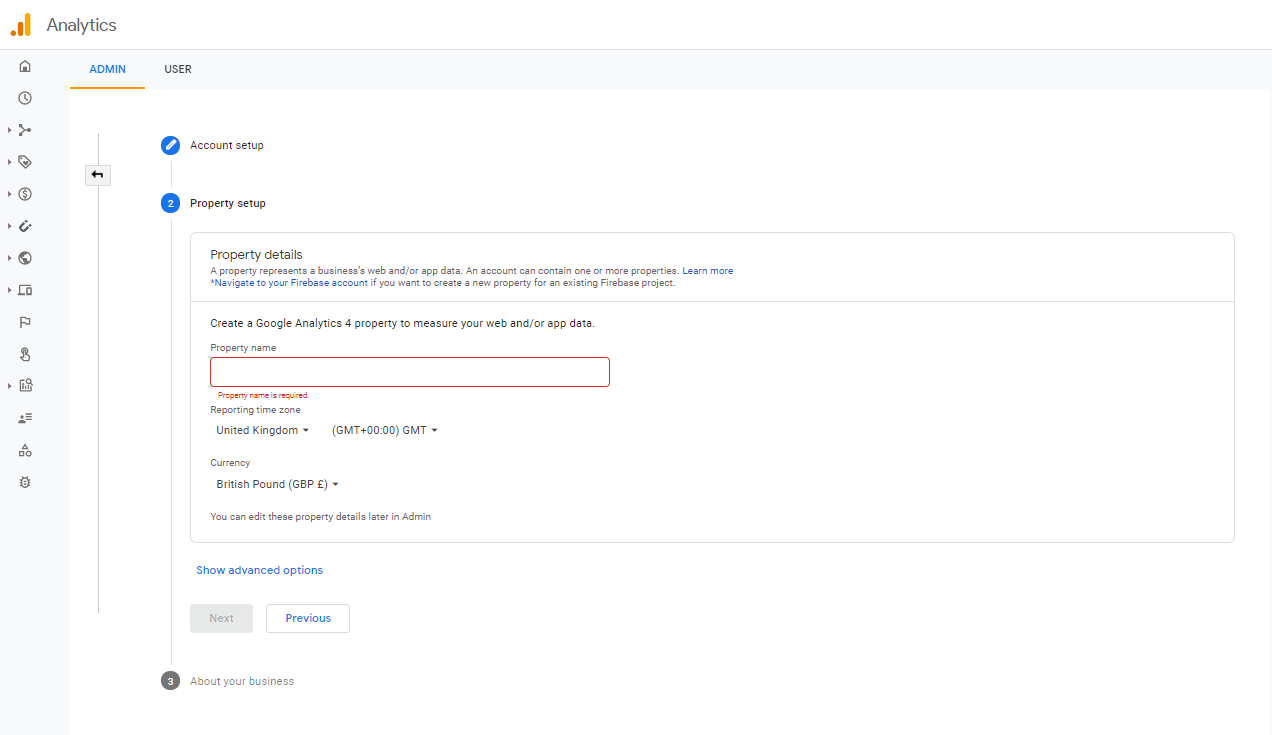
Set up your Google Analytics 4 property with the settings to your liking, and meet us at the next step!
### Step 2: Creating a Data Stream in Google Analytics
Once you have successfully created your Google Analytics property, we'll need to create a **Data Stream** to start collecting data from our website.
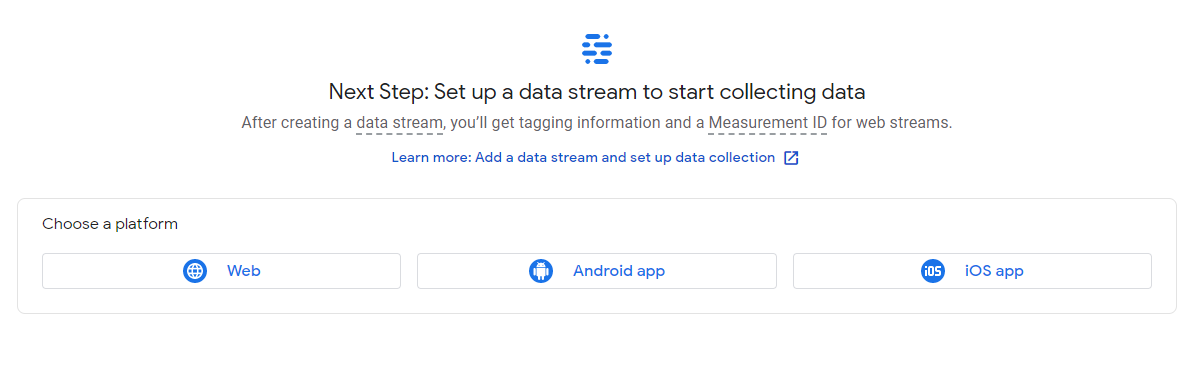
Since we're using Next.JS, I'll create a **Web Data Stream**.
Enter a Name and the url of your website, and click **Create Stream**:
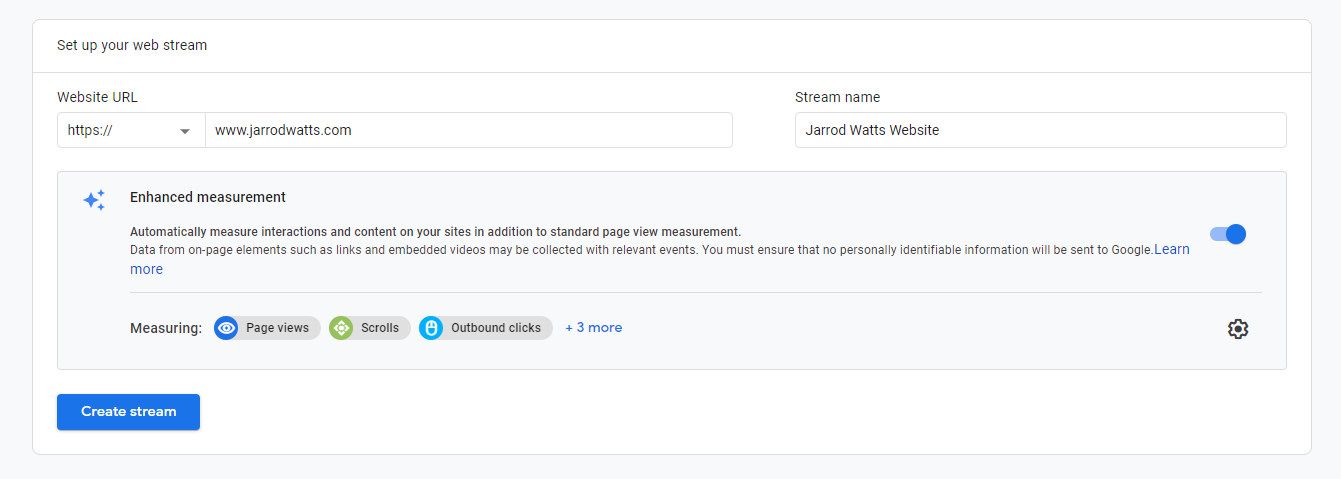
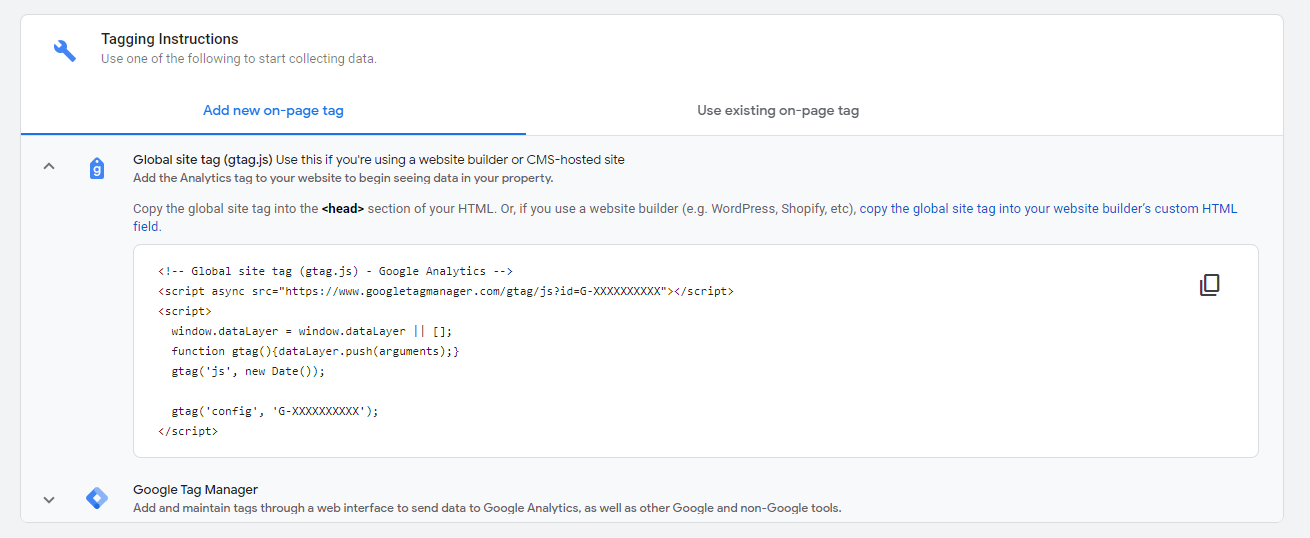
Once you've created the stream, you'll hopefully be shown the tag to put into your application, copy this code somewhere because we'll be coming back to it later.
### Step 3: Setting Up The Next.JS Project.
If you already have an existing Next.JS Project you'll need to upgrade to Next.JS version 11 to use the Script component, to do that, run:
```
npm install react@latest react-dom@latest
npm install next@latest
```
For those starting with a **new** Next.JS project, we'll create a new project by running:
```
npx create-next-app my-app-name
```
### Step 4: Placing the Script Components
Open up your newly created project in the text editor of your choice.
#### _app.js
> Next.js uses the App component to initialize pages. You can override it and control the page initialization.
`_app.js` Allows you to write code that will impact **ALL** of your pages - so it is the perfect place for us to create the Script components.
Our default `_app.js` file looks like this:
```
import '../styles/globals.css'
function MyApp({ Component, pageProps }) {
return
}
export default MyApp
```
Let's modify it to place our Google Analytics tracking tags on every page.
Firstly we will need to import the Script component from Next.
```
import Script from 'next/script'
```
Then, modify our `return` code to look like this:
Replacing `XXXXXXXXXX` with your real Measurement ID.
```
return (
<>
);
```
Awesome! Now let's test out our code to make sure it's working correctly.
### Step 5: Testing The Tags
To run your application on a web environment, run :
```
npm run dev
```
from the root of your project's directory.
This will bring up your web application at [localhost:3000](http://localhost:3000/).
There are a number of checks we can make to ensure we have set up Google Analytics correctly.
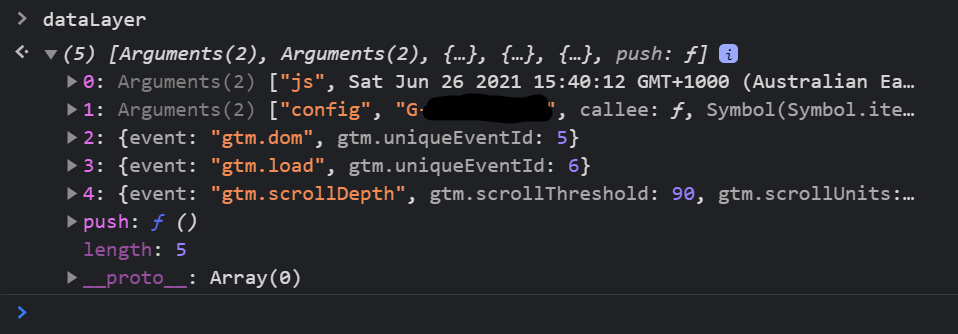
The first one being opening up the **Chrome Console** by hitting the F12 key.
Type `dataLayer` into the console to see the events that have been sent by the analytics tag, like this:
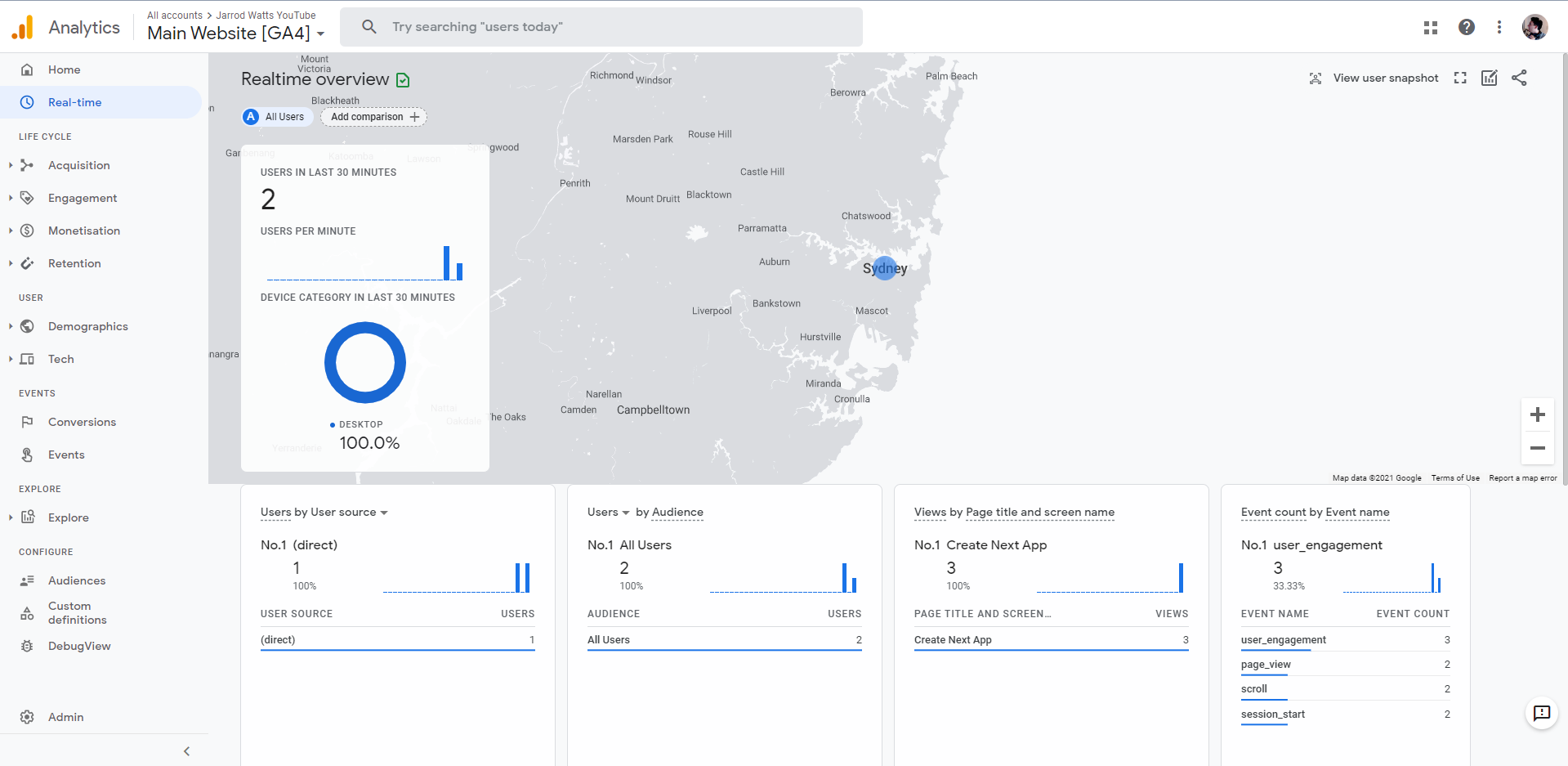
Next, we can check our **Real-time Overview** in our Google Analytics Property. Here, you should see events coming through with information about which pages user's are visiting on your site.
### Bonus: Environment Variables
To keep your Google Analytics measurement ID hidden from the public, you can utilize [environment variables](https://nextjs.org/docs/basic-features/environment-variables).
To use environment variables, create a `.env.local` file at the root of your project.
Create an entry into that file like this:
```
NEXT_PUBLIC_GOOGLE_ANALYTICS=G-XXXXXXXXXX
```
Then rather than hard-coding your measurement ID into the script, change it to reference that environment variable, like so:
```
return (
<>
);
```
## Conclusion
The new Script Component and the utilization of the `lazyOnload` strategy, is a great way to set-up Google Analytics without hurting the performance of your website, in Next.JS 11.
With `next/script`, you no longer need to use the `_document.js` or `dangerouslySetInnerHTML`, and also no longer need to include your scripts as part of the `` tag.
Next.JS's recent addition of the [`Script` component](https://nextjs.org/docs/basic-features/script) is an amazingly simple way to implement Google Analytics across all of the pages in your Next.JS application.
## Connect With me!
[Buy me a coffee ☕](https://www.buymeacoffee.com/jarrodwatts)
YouTube: youtube.com/channel/UCJae_agpt9S3qwWNED0KHcQ
Twitter: twitter.com/JarrodWattsDev
GitHub: github.com/jarrodwatts
LinkedIn: linkedin.com/in/jarrodwatts
Website: jarrodwatts.com